How to Secure Your Smartphone: A Complete Guide
Protect your smartphone from hackers, data leaks and snooping with these essential security steps -- including screen lock, app permissions, VPN, and encrypted messaging.
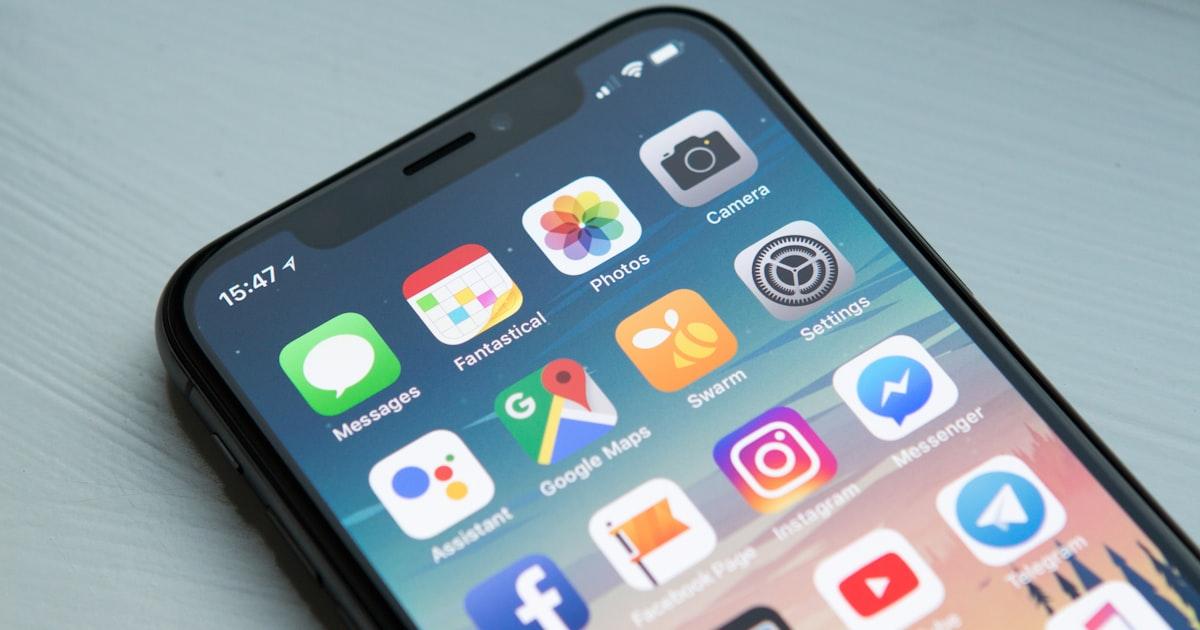
Your smartphone holds your banking apps, private messages, photos and location history. Losing control of it -- or having it silently monitored -- can have serious consequences. The good news is that a few consistent habits dramatically reduce your risk.
Lock Your Screen and Use Strong Authentication
Set a PIN of at least six digits, or use a strong alphanumeric passcode. Biometrics like fingerprint or Face ID add convenience but should back onto a strong PIN, not a weak four-digit one. Enable auto-lock after 30 seconds of inactivity. On Android, check Settings > Security; on iOS, go to Settings > Face ID & Passcode.
Audit App Permissions and Keep Software Updated
Review which apps have access to your camera, microphone, location and contacts. On iOS open Settings > Privacy & Security; on Android use Settings > Apps > Permissions. Revoke anything that seems excessive. Equally important: install OS and app updates promptly -- most real-world attacks exploit known vulnerabilities that patches already fix.
Use a VPN on Public Wi-Fi
Public Wi-Fi in cafes, airports and hotels is a prime target for man-in-the-middle attacks. A VPN encrypts all traffic leaving your device before it reaches the access point, so even a compromised network cannot read your data. Nexun uses WireGuard -- the fastest and most modern VPN protocol available -- and keeps zero logs of your activity. Download the Nexun app from the App Store or Google Play and connect before joining any public network.
Encrypted Messaging and Two-Factor Authentication
Switch to end-to-end encrypted messaging apps such as Signal or WhatsApp for sensitive conversations. For two-factor authentication (2FA), use an authenticator app like Google Authenticator or Authy rather than SMS codes, which can be intercepted via SIM-swapping. Enable 2FA on your email, banking and social media accounts first.
Enable Remote Wipe and Back Up Regularly
Both iOS (Find My) and Android (Find My Device) let you remotely locate, lock or wipe your phone if it is lost or stolen. Make sure these features are enabled before you need them. Back up your device regularly -- to iCloud or Google One -- so a wipe does not mean permanent data loss. Together, these steps give you a strong, layered defence for your smartphone.
Download Nexun VPN
Try Nexun VPN free -- protect your privacy with WireGuard encryption and Privacy Logging.
FAQ
Is biometric unlock (fingerprint/Face ID) safe enough on its own?
Biometrics are convenient but not foolproof. They can be bypassed by a court order, or in rare cases by a look-alike or spoofed fingerprint. Always back biometrics with a strong PIN so that the PIN is what truly secures the device.
Do I need a VPN if I only use HTTPS websites?
HTTPS protects the content of web requests but still exposes which domains you visit (via DNS queries and TLS handshakes). A VPN also hides your DNS lookups, masks your real IP address, and protects all apps on your device -- not just the browser.
What is the quickest way to wipe my phone remotely if it is stolen?
On iOS, open icloud.com/find on any browser, select your device and choose Erase iPhone. On Android, go to android.com/find, sign in and select Erase Device. Both require the phone to be online. If it is offline, the wipe will execute as soon as it connects.